

Summary, export and import
Everything up to this point produces numbers on your screen. This page covers getting them out: the summary table, the exports it feeds, and how to move work between machines.
The takeoff summary
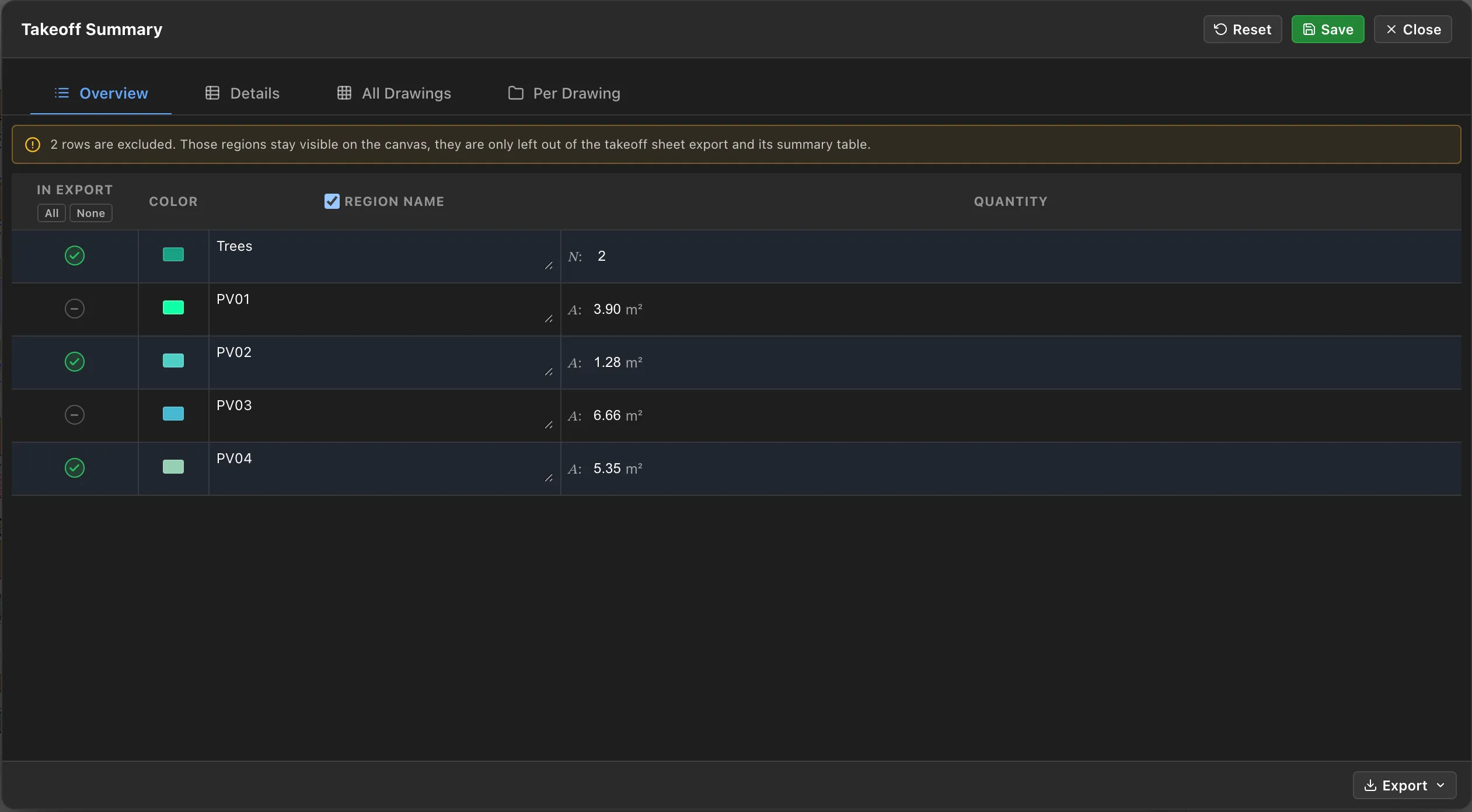
Section titled “The takeoff summary”The Takeoff Summary collects every group and its quantities into one table, work in progress and saved layers alike.
| Column | What it shows |
|---|---|
| Color | The group’s colour, for matching a row against the drawing |
| Region Name | The group name |
| Quantity | Its measured quantities |
The colour column is what makes the table usable. A reader holding a printed sheet can match a row to what they are looking at without decoding names.
The Quantity column shows only the quantities a group actually has, so an area group shows an area and its perimeters, a linear group shows a length, and a count group shows a count. Symbols are as they appear elsewhere in the app:
A area, Pₙ net perimeter, Pₑ external perimeter, Pᵥ void perimeter, V volume, L length, A₁ and A₂ derived band areas, N count.
The four tabs
Section titled “The four tabs”The summary has four tabs, each a different view of the same numbers, and each with its own Export button in the bottom corner.
Overview is one row per group with its quantities on one line. This is what you price from and what most people want.
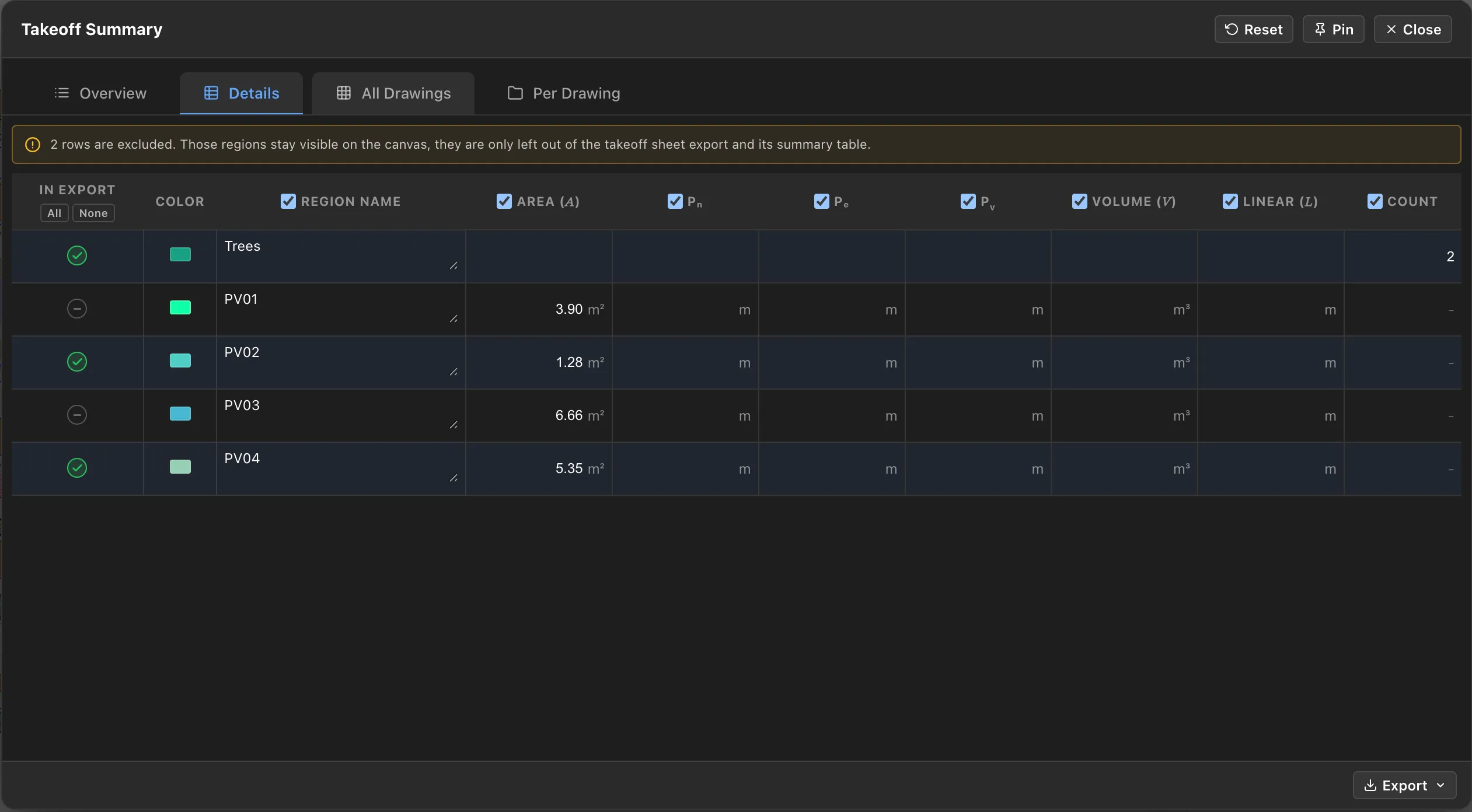
Details spreads the same groups across one column per quantity: A, Pₙ, Pₑ, Pᵥ, V, L and Count. The tick box on each column shows or hides it, so you can reduce the table to just the columns your bill needs.
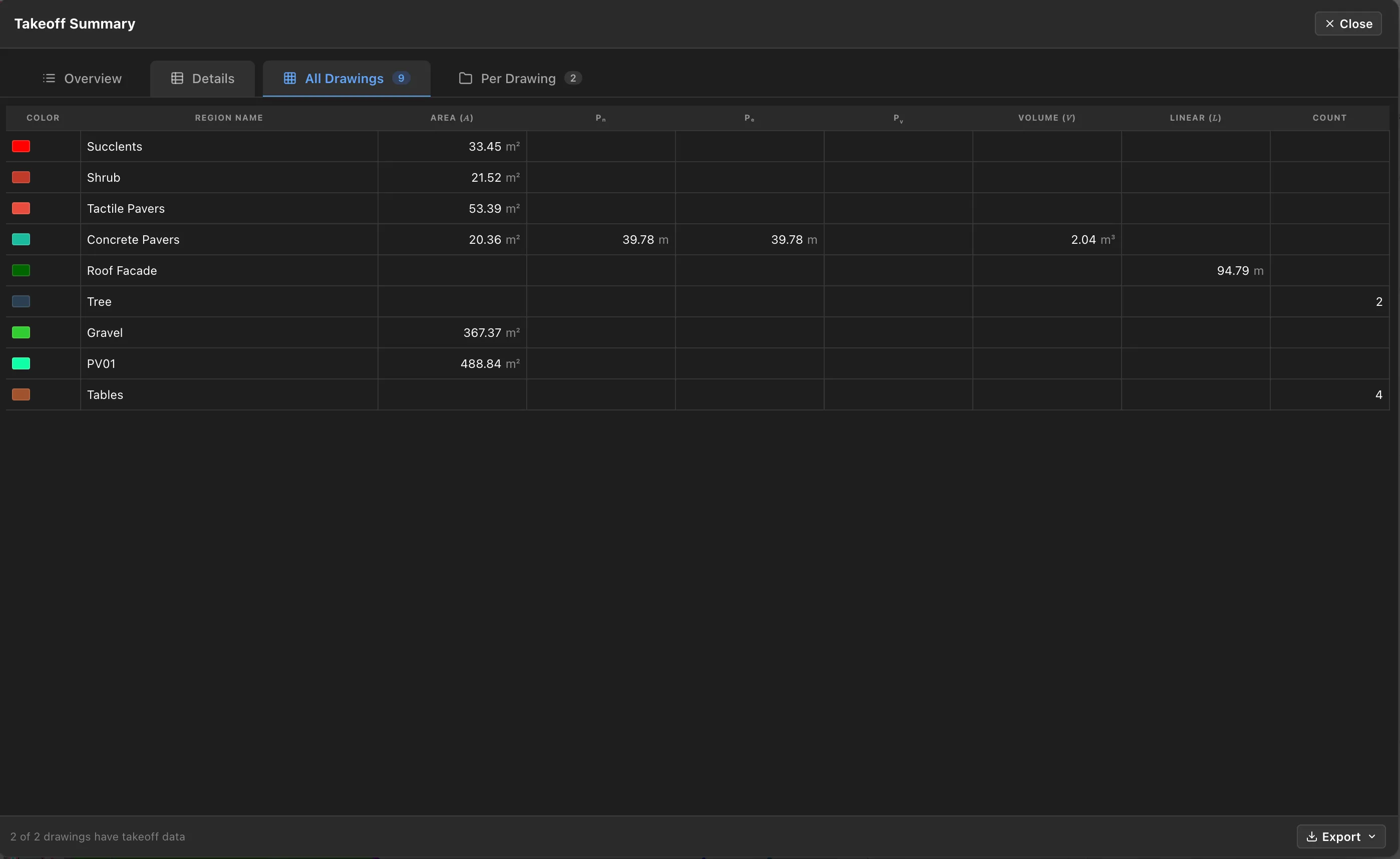
All Drawings consolidates every group across the whole drawing set into one table, with a footer confirming how many drawings contributed. Groups with the same name and colour total together, so “Paving” measured across four sheets arrives as one figure.
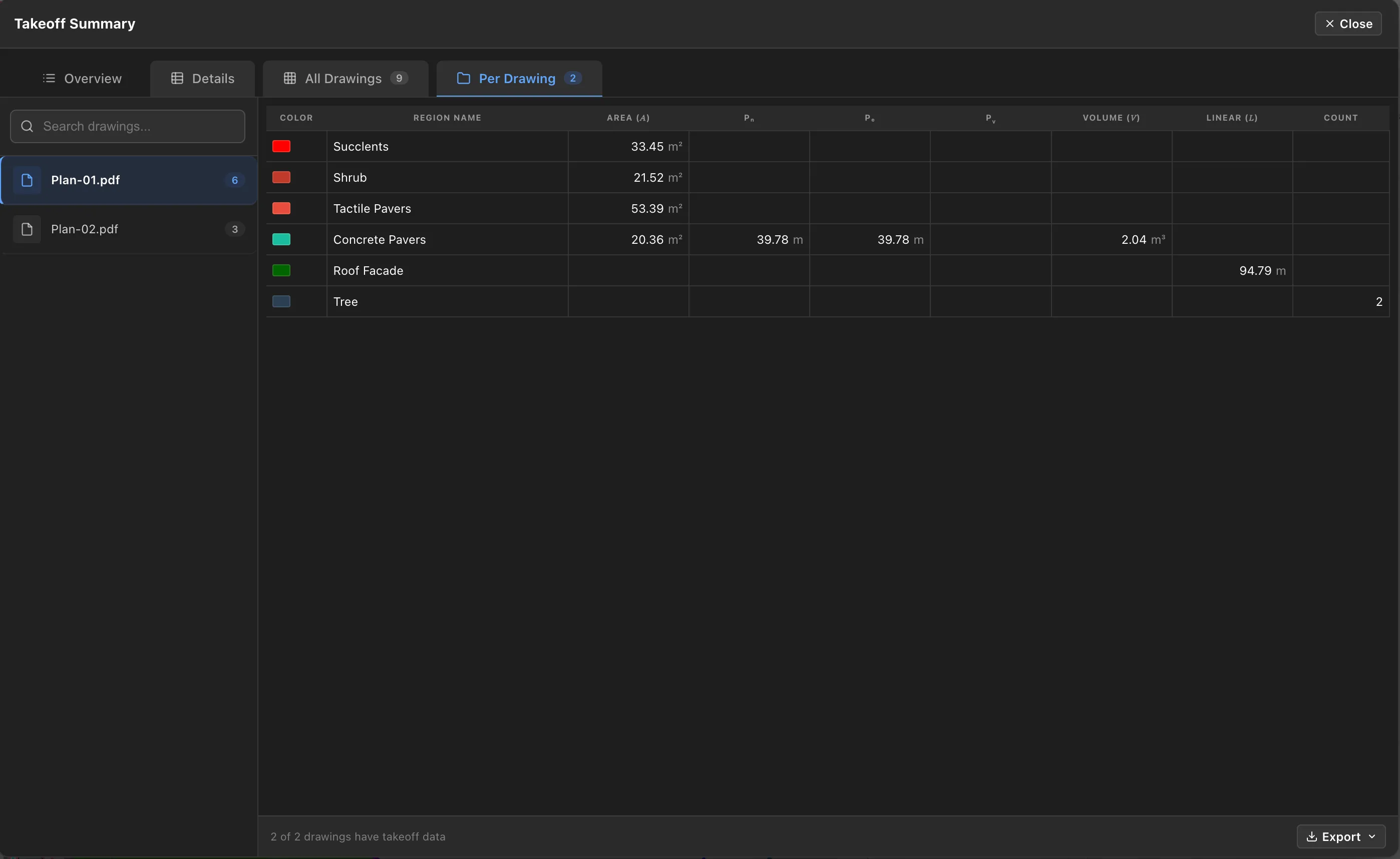
Per Drawing lists the drawings down the side, with a search box, and shows one table per selected drawing.
Names and values can be edited directly in the table, and Reset in the header returns everything to the measured values. An edited figure follows the drawing everywhere it is reported: the summary, the table pinned to the sheet, and the quantity table stamped on every exported PDF, including exports of a whole drawing set.
Leaving a group out
Section titled “Leaving a group out”The In export column decides which groups reach the exported takeoff sheet. A green tick means the group is in, a grey dash means it is out. All and None at the top of the column switch every row at once.
Excluding a group changes the export and nothing else:
- The regions stay on the canvas, drawn exactly as before. They are still selectable, still editable, and still counted in the panels.
- The group is left out of the exported takeoff sheet and out of the quantity table printed on it.
- Groups you exclude are tagged Excluded in the layer panels, so you can see at a glance why something is missing from an export.
Use it for work you have measured but are not pricing on this issue, such as a provisional sum, an alternate specification, or someone else’s package.
Pinning the summary to the drawing
Section titled “Pinning the summary to the drawing”Pin, in the summary’s header, places the table onto the drawing itself, so it travels with the sheet when exported.
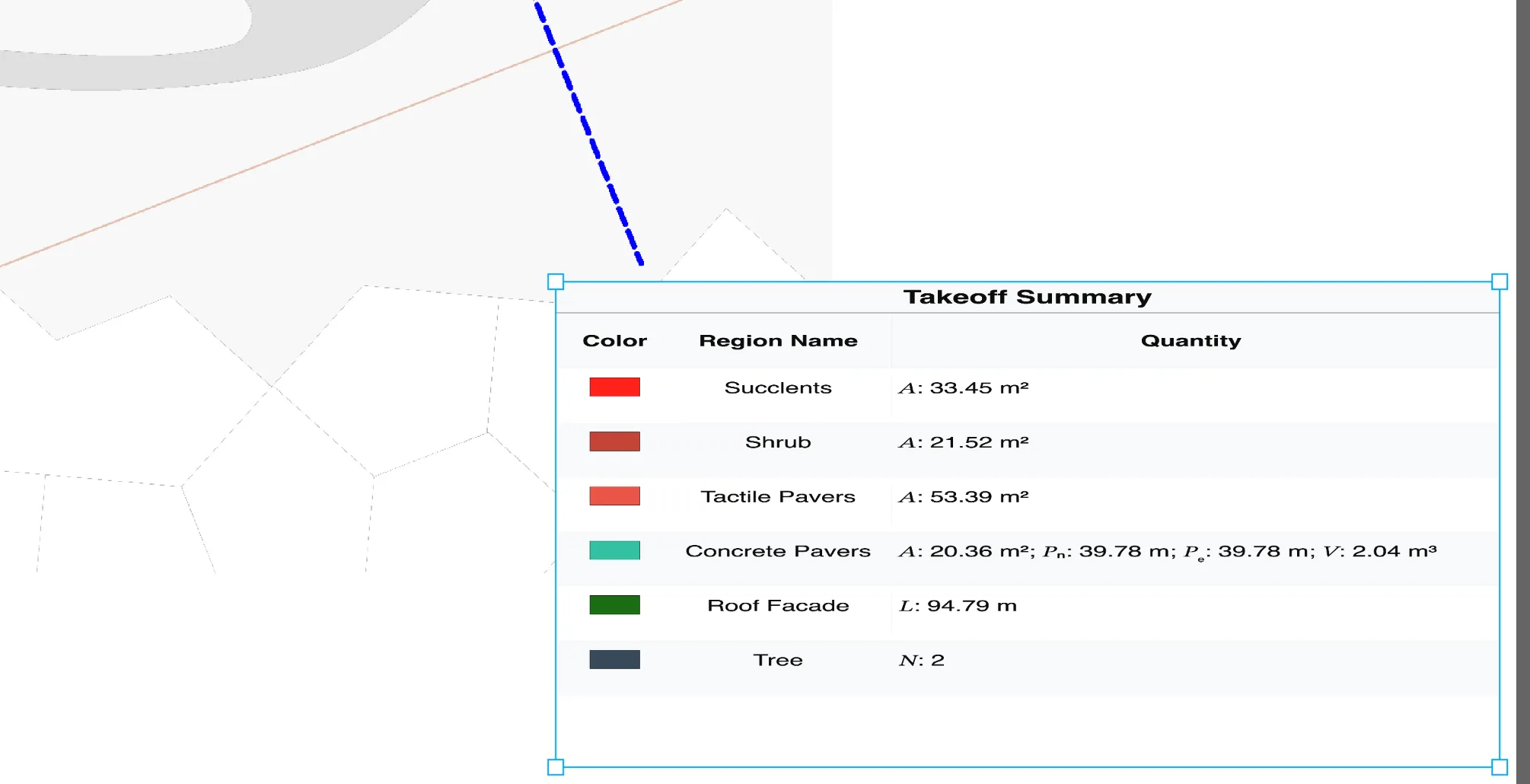
- The pinned table is draggable and resizable: drag it to a clear corner, and pull the corner handles to size it so it reads well at print size.
- A pinned summary is how a recipient reads quantities off a PDF without opening PixelTakeoff.
- Position it where it does not cover anything important, usually a clear corner near the title block.
Where you export from
Section titled “Where you export from”There are two places, and they suit different jobs:
- From the editor, via Export in the top bar: exports of the drawing you are working on, its takeoff sheet, and its quantities.
- From the Projects page: exports covering more than one drawing at once, whole drawing sets, consolidated summaries across sheets, and workspace files for another PixelTakeoff user.
If you are pricing one sheet, export from the editor. If you are issuing a job, export from the Projects page.
Exporting quantities as a spreadsheet
Section titled “Exporting quantities as a spreadsheet”Every tab of the Takeoff Summary has an Export button in its bottom corner, exporting the table you are looking at:
- CSV, comma separated, for opening anywhere
- Excel workbook (XLSX), for pricing
The tab decides the scope: export from Per Drawing for one sheet, or from All Drawings for the consolidated job. Exported files are named with the drawing, the scope and the date, so a folder of exports stays readable weeks later.
A quantity a group does not have is left blank, not written as zero. A linear group has no area, a count group has no perimeter, and an area group with no depth set has no volume. Blank cells stay out of averages and counts in your spreadsheet, where a zero would drag them down and read as a real measurement of nothing.
The Export dialog
Section titled “The Export dialog”Export in the editor’s top bar opens the Export dialog, with two tabs.
Current Drawing
Section titled “Current Drawing”Exports of the sheet you are working on:
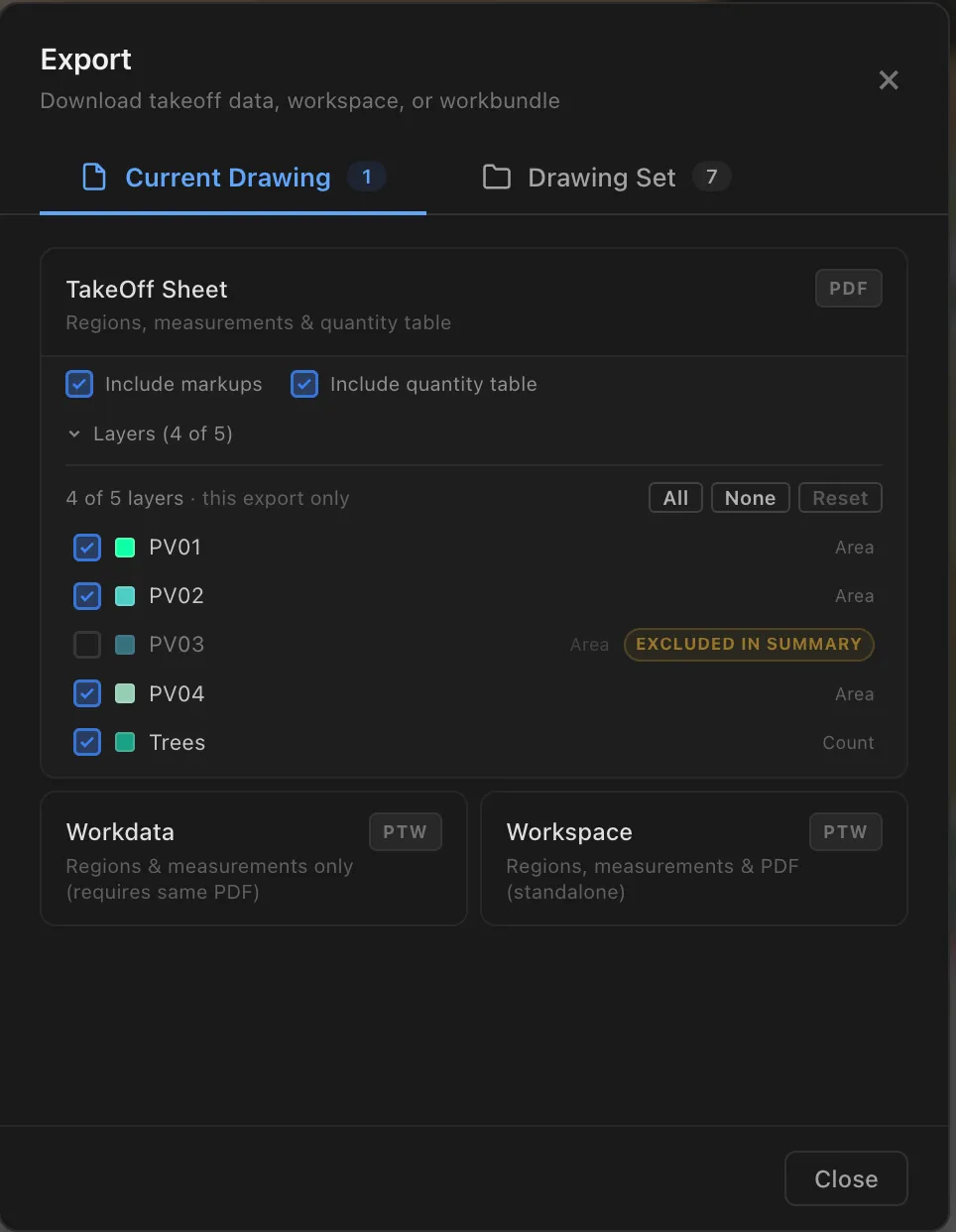
| Option | File | What it contains |
|---|---|---|
| TakeOff Sheet | The drawing with your regions, measurements and the table drawn on it. What you send to a client, a colleague or a subcontractor. | |
| Workspace | PTW | The live takeoff and the drawing, standalone. For another PixelTakeoff user. |
| Workdata | PTW | The takeoff only, without the drawing. Smaller, but the recipient needs the same PDF. |
The TakeOff Sheet has two toggles:
| Toggle | Effect |
|---|---|
| Include quantity table | Adds the quantity table to the sheet. Leave on unless you deliberately want a drawing without numbers. |
| Include markups | Adds your annotations. Turn off for a clean quantities sheet, on when your notes and queries are the point. |
Those two toggles let one takeoff serve two audiences. A clean sheet with quantities and no markup goes to the client, while the same takeoff with markups on goes to the design team carrying your queries.
Choosing layers for one export
Section titled “Choosing layers for one export”Layers under the toggles lists every group the sheet would carry, with a tick box each and All, None and Reset at the top. Reset puts the list back to how the dialog opened, so you can experiment freely and undo it in one click. It greys out when nothing has changed, which also tells you at a glance whether you have altered anything.
- Open Layers to see the list, with a colour swatch and the kind (Area, Linear or Count) beside each group.
- Untick anything this export should leave out.
- Export as usual.
What you choose here applies to that one export. Nothing is saved: your takeoff summary, the table pinned to the drawing and the saved work are all untouched, and the next export starts from a clean slate.
Groups already excluded in the takeoff summary arrive unticked and tagged Excluded in summary, so it is clear the decision came from there rather than from this dialog. Tick one back on and it goes into this export after all, tag and all. The quantity table printed on the sheet is rebuilt to match whatever you choose, so the drawing and its table always agree.
Drawing Set
Section titled “Drawing Set”The same choices across several drawings at once. Tick the drawings to include, or Select All:
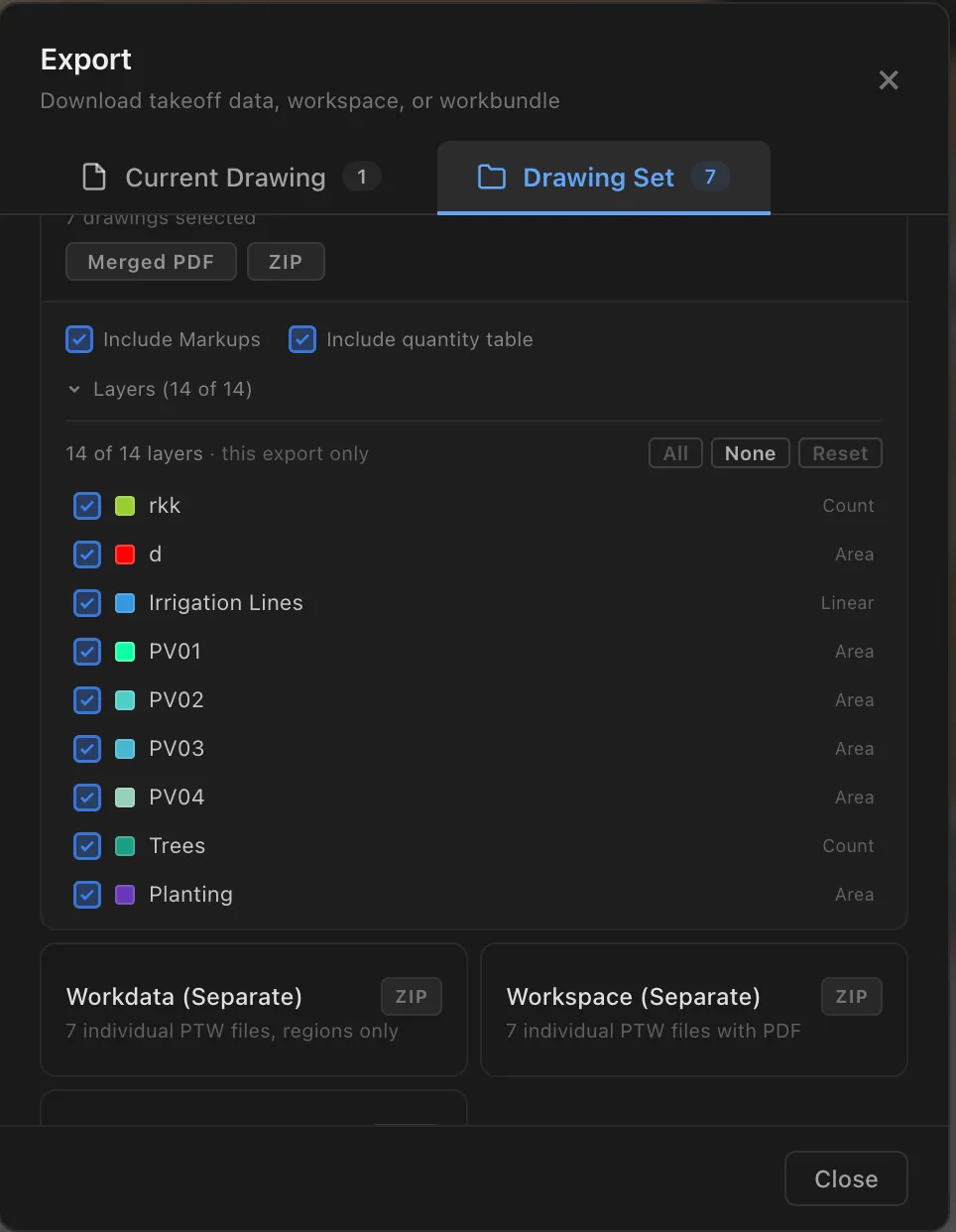
| Option | File | What it contains |
|---|---|---|
| TakeOff Sheet | Merged PDF or ZIP | The selected sheets, either combined into one PDF or as separate files in a ZIP. |
| Workspace (Separate) | ZIP | One standalone PTW per drawing, each with its PDF inside. |
| Workdata (Separate) | ZIP | One takeoff-only PTW per drawing. |
| Workbundle | PTW | All the selected drawings bundled into a single PTW file. |
Layers works here too, listing every group across the whole drawing set rather than one sheet. Groups with the same name and colour are one entry, so unticking “Paving” leaves it out of every sheet in the export. The list is read from the set when you open it, which takes a moment on a large job.
Only drawings with these layers decides what happens to a sheet the layer list empties. Leave it unticked and every drawing you selected becomes a page, blank where that layer does not appear, which keeps the set complete as a document. Tick it and those sheets are left out, giving you a PDF of only the drawings that carry the work. It stays greyed until you untick a layer, because with every layer in, no drawing can come out empty.
While the export runs you are told how many drawings were left out, so a missing sheet is never a surprise you find later in the PDF.
The same Layers list is on the Projects page export, under TakeOff Sheet on the Drawings tab.
Sharing your work with another PixelTakeoff user
Section titled “Sharing your work with another PixelTakeoff user”Send a Workspace PTW for one drawing, or a Workbundle PTW for a whole set. Both carry the live takeoff and the drawings inside one file, so the recipient needs nothing else: they open it in PixelTakeoff and continue or review your work.
Workdata is the lightweight variant, takeoff without the drawing. Use it only when the recipient already has the identical PDF.
Importing
Section titled “Importing”Adding drawings. Upload PDFs into a drawing set, or drag and drop them onto the drawing set. Group them into folders if a job has many sheets.
Opening a shared takeoff. A .ptw workspace file opens in PixelTakeoff
directly, including by double clicking it. If it was exported with the PDF
included, everything needed is in the one file.
Open as reference
Section titled “Open as reference”Open as reference opens the current takeoff in a separate window while you keep working in the main one.
It is useful for cross checking one sheet against another, for keeping a detail visible while measuring the plan it belongs to, and for working across two monitors. The reference window can be refreshed to pick up work you have done since opening it.
Before you issue anything
Section titled “Before you issue anything”A short checklist, because these are the mistakes that actually reach clients.
- Unhide everything. A hidden group is excluded from totals, so it is missing from the export too. This is the most common cause of a short quantity.
- Check the In export column. A group can be on the drawing and still be left out of the sheet. Scan the column, or press All, before you issue.
- Confirm the group list. Every material you meant to measure should be there. A missing group is easier to spot in the summary than on the drawing.
- Sanity check the largest number. If the biggest quantity is plausible, the scale is almost certainly right, and if it is out by a factor then everything is.
- Check the scale is set on every sheet. Scale is per drawing, so a sheet added later may still need it.
- Decide on markups. Client sheet or design team sheet, they usually want different answers.
- Open the exported PDF before sending it. Thirty seconds confirms the summary is legible, positioned sensibly and not covering the title block.
Common questions
Section titled “Common questions”My export is missing a material I definitely measured. Two causes, in this order. Either the group is hidden, so it is out of the totals as well, or it is unticked in the In export column or in the export dialog’s Layers list, which leaves it on the drawing but out of the sheet.
A group is on my screen but not on the exported sheet. That is exclusion doing its job. Excluded groups stay visible while you work and are only left out of the export. Tick it back on in In export, or in Layers for one export only.
The exported numbers do not match my screen. They are produced from the same totals, so check that the two are showing the same scope, since a per drawing export will not match an all drawings screen total.
Can I export just one zone? Yes, zone quantities are reported per zone.
Which format should I send a client? A TakeOff Sheet PDF, with the summary included. It shows what was measured as well as how much, which a spreadsheet alone does not.
Can the recipient edit my takeoff? Only from a PTW workspace file, and only in PixelTakeoff. A PDF export is a flat record.