

The home screen
The home screen is what opens after you activate. It is your launch pad: start or resume work on the left, check the app’s health in the middle, and find help on the right.
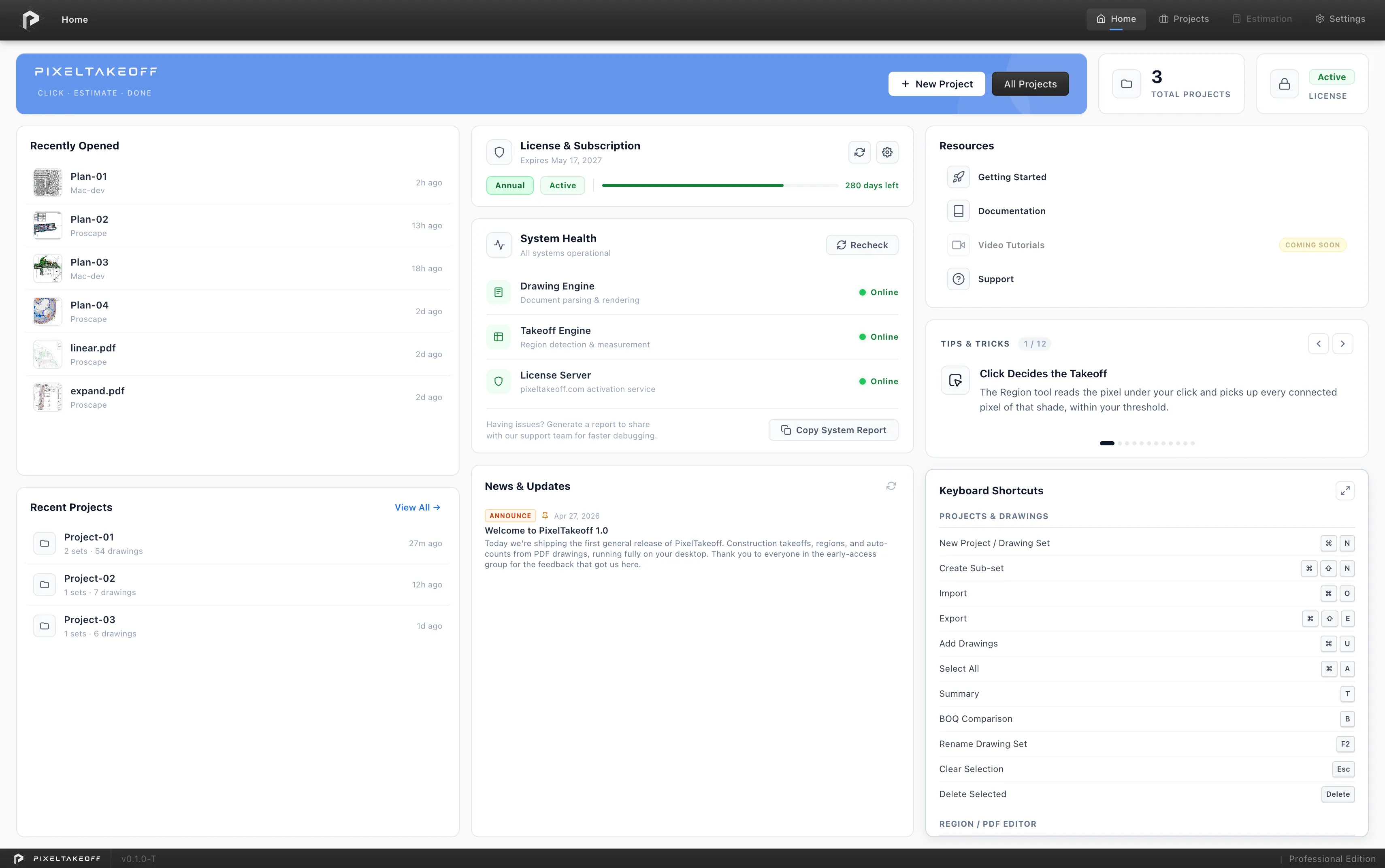
The banner
Section titled “The banner”Across the top:
 New Project (
Ctrl+N,Cmd+Non Mac) starts a new job.- All Projects opens the Projects page.
 Total Projects shows how many projects you have. Click it to open
the Projects page.
Total Projects shows how many projects you have. Click it to open
the Projects page. License shows your license status at a glance. Click it to open
Settings → License & Activation.
License shows your license status at a glance. Click it to open
Settings → License & Activation.
The navigation across the top (Home, Projects, Settings) is available on every page, so you are never more than one click from any of them.
Creating a project, step by step
Recently Opened
Section titled “Recently Opened”The drawings you had open most recently.
- Click one to go straight back into the editor where you left off.
- This is the fastest way back into work in progress, so for day to day use it is usually the only card you need.
Recent Projects
Section titled “Recent Projects”The projects you have worked on most recently.
- Click one to open the project and its drawing sets.
- View All shows the full list, the same place All Projects and the Projects navigation lead.
 License & Subscription
Section titled “ License & Subscription”Your plan and its status, without opening Settings.
- Shows the plan, the status, the expiry date and a bar of the time remaining.
- The refresh button re-checks your license with the server immediately. Use it after a renewal or plan change so the app picks up the new state straight away.
 System Health
Section titled “ System Health”A live status card for the services the app depends on:
| Item | What it covers |
|---|---|
| Drawing Engine | Document parsing & rendering |
| Takeoff Engine | Region detection & measurement |
| License Server | License checks |
- Each shows Online, Checking or Offline, and the card summarises with All systems operational or Some services need attention.
- Recheck runs the checks again on demand.
- Copy System Report copies a status report to share with support, which speeds up a support conversation considerably.
- If something misbehaves in the editor, glancing here first tells you whether the cause is a service rather than your drawing.
News & Updates
Section titled “News & Updates”Short notices from us: new versions, new features, announcements and security notes, each labelled with its kind. Nothing here installs anything, and updates remain yours to take when you choose.
Version and updates in Settings
Resources
Section titled “Resources”Four links for when you need help:
 Getting Started opens the Getting started guide on this site.
 Documentation opens this documentation site.
 Video Tutorials opens the video tutorials page. Videos are being
recorded, so it carries a Coming soon badge for now.
Video Tutorials opens the video tutorials page. Videos are being
recorded, so it carries a Coming soon badge for now. Support is the route to us. You can also reach support from
Settings → Support.
Support is the route to us. You can also reach support from
Settings → Support.
Getting startedVideo tutorials
Tips & Tricks
Section titled “Tips & Tricks”Short working tips shown one at a time, with arrows to move through the set. Worth a glance while a large drawing opens. The full written version of every tip’s subject is in this documentation.
Keyboard Shortcuts
Section titled “Keyboard Shortcuts”The most useful shortcuts at a glance, with a view all option showing the complete list.
Where to go next
Section titled “Where to go next”Getting startedProjects and your workspaceTour of the editor