

Settings
Settings has six tabs. Most people set them once and never return, so this page exists for the day you need to find something specific.
| Tab | What it covers |
|---|---|
| Performance | Rendering quality, memory and cache |
| Region Settings | Default values for new drawings |
| Advanced | Export limits, diagnostics and data management |
| License & Activation | Your license and device activations |
| Support | Reporting an issue |
| About | Version, system and legal |
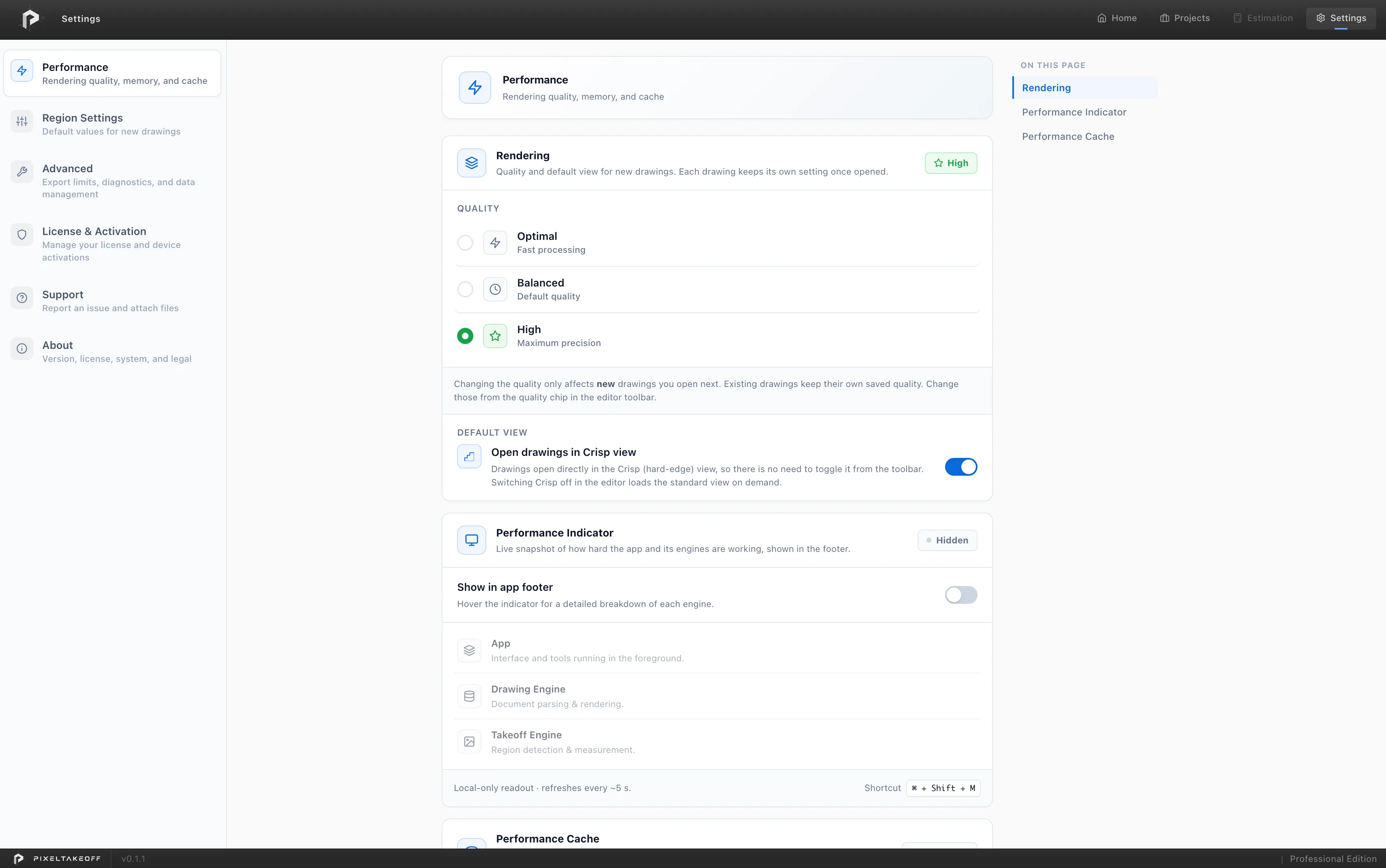
The tabs run down the left, the settings for the selected tab fill the middle, and a short On this page list on the right jumps between sections on long tabs.
Performance
Section titled “Performance”Rendering
Section titled “Rendering”Quality controls how much detail drawings are displayed with. Higher quality makes fine lines and small text easier to read and easier to click accurately. Lower quality is faster and lighter on memory.
This does not affect your quantities. It changes what you can see, which changes how accurately you can work, but the measurement itself is governed by the drawing scale.
Raise it when a drawing is dense or you are clicking small targets. Lower it if a large sheet feels sluggish.
Open drawings in Crisp view starts every drawing with Crisp already on, rather than turning it on by hand each time. This is on by default, because most drawings are line work and Crisp is what makes thin lines and small text readable. Turn it off if you would rather start from the standard render, and the toolbar’s Crisp button still switches either way per drawing.
Default View sets which view a drawing opens in.
Performance Indicator
Section titled “Performance Indicator”Show in app footer displays a live readout of how hard the app is working, down in the footer. Hover it for a breakdown of three parts: the App, the Drawing Engine and the Takeoff Engine, so a slowdown can be pinned on one of them rather than guessed at.
It is a local readout that refreshes every few seconds, and Ctrl + Shift +
M (Cmd + Shift + M on Mac) toggles it without coming back here. Useful
when diagnosing whether a big drawing is straining your machine, and easy to
ignore otherwise.
Performance Cache
Section titled “Performance Cache”Prepared data that makes drawings open and respond quickly. It is broken into Rendered pages, Geometry cache and Working state, each with its own size, and the card shows the total.
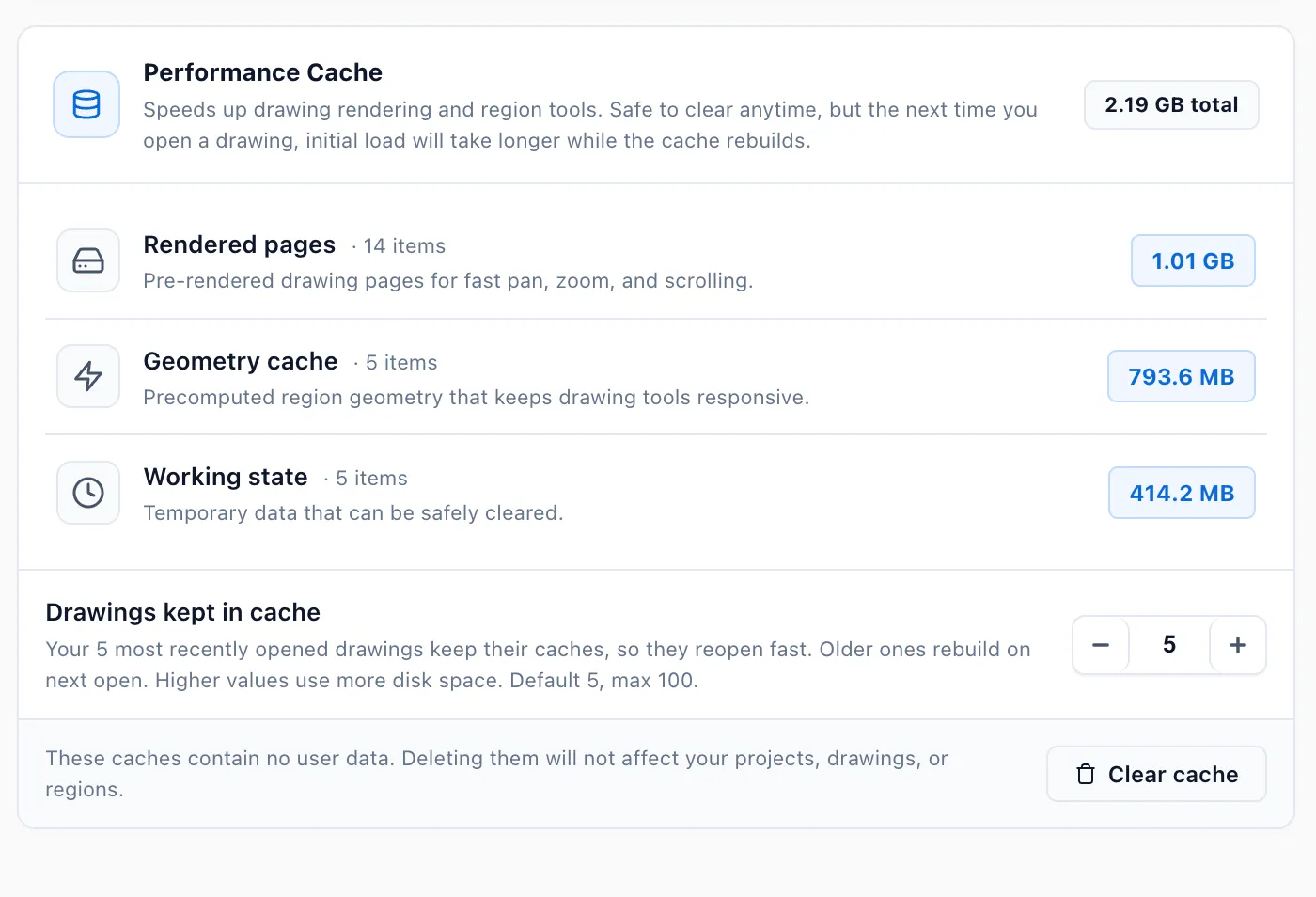
Drawings kept in cache sets how many recently opened drawings keep theirs. The default is 5 and the maximum is 100. Raise it if you move between the same sheets all day and want them to reopen instantly, lower it if disk space is tight. Drawings past the limit rebuild their cache the next time you open them.
Clear cache is safe at any time. These caches hold no work of yours, so clearing them cannot affect a project, a drawing or a region. The only cost is that the next open of each drawing takes longer while it rebuilds.
Region Settings
Section titled “Region Settings”Defaults applied to new work. Changing them here does not alter anything you have already measured.
| Setting | What it does | Default |
|---|---|---|
| Color Tolerance | How closely colours must match for the tool to treat two parts of the drawing as the same area. Range 1 (Strict) to 50 (Loose). | 8 |
| Max Pixels | An upper size limit on a single region, which stops a runaway fill from consuming a whole sheet. | 10M, the maximum |
| Region Opacity | How solid your takeoff looks over the drawing. Lower it to read the drawing underneath. | 90% |
| Unit System | The active unit for all layers. | Metric |
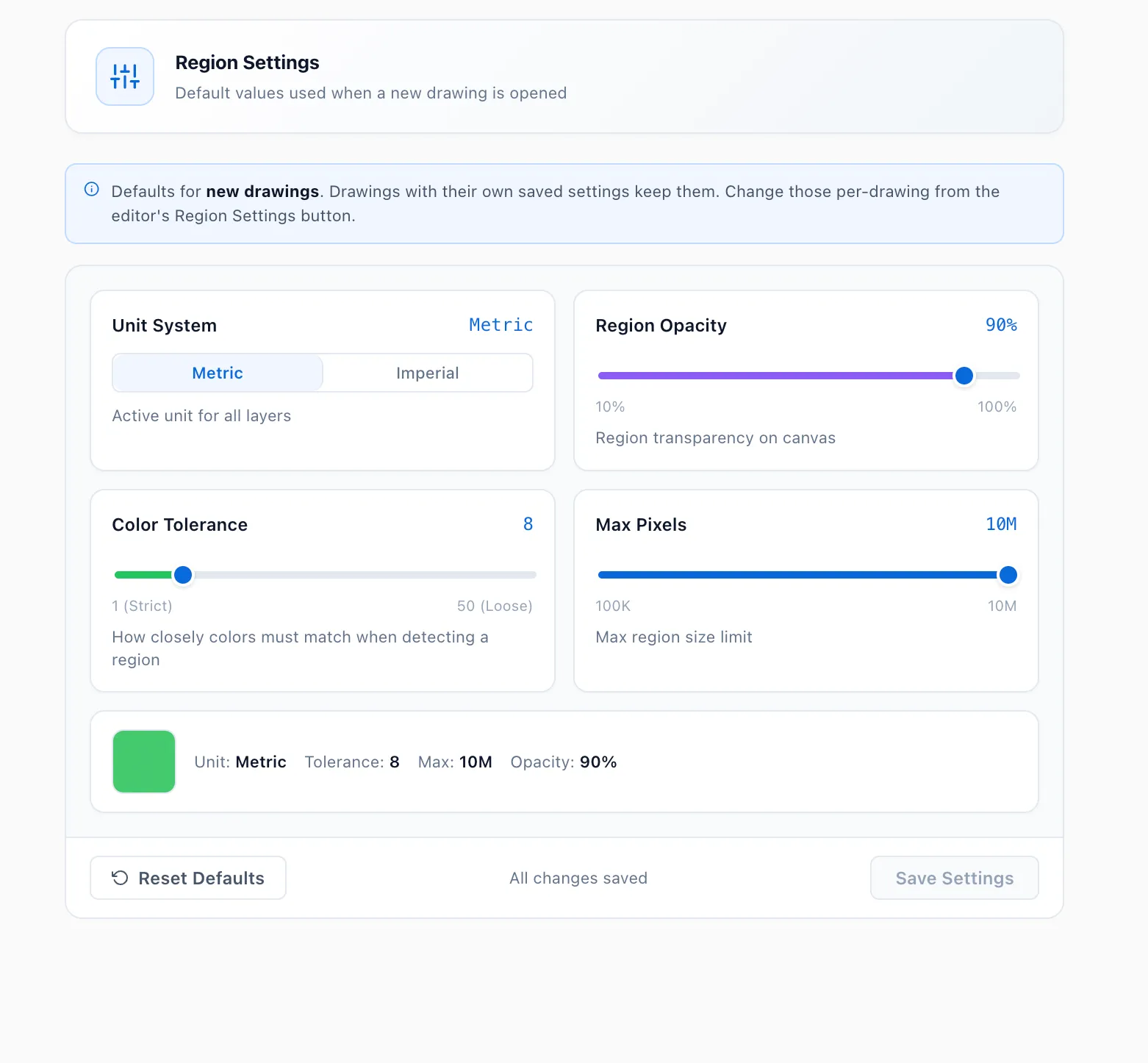
Each slider shows its range, so you can see how far a value can go before you move it. Reset Defaults puts all four back, and the panel confirms All changes saved once a change has stuck.
Region Opacity is display only and never changes a quantity.
Unit System changes how quantities are shown, never what was measured, so you can switch between metric and imperial freely.
These are the global defaults: every new drawing starts with these values.
The same settings are reachable while you work, from
 Region Settings in the editor, and values set there
override these for that drawing only.
Region Settings in the editor, and values set there
override these for that drawing only.
Advanced
Section titled “Advanced”Export & Upload Limits
Section titled “Export & Upload Limits”Max Export, Max PDF Upload and Max PTW Import cap the size of files going out and coming in. Raise them if you work with unusually large sheets and hit a limit; the defaults suit ordinary drawings.
Diagnostics & Support
Section titled “Diagnostics & Support”Enable detailed logging captures logs from the app, the drawing engine and the takeoff engine into a log file. Leave it off for normal work, and turn it on if you are reproducing a problem for support, since the extra detail is often what identifies the cause. Restart the app after turning it on, so every engine starts writing its log.
Export support bundle produces a single file of those logs, and Reveal log folder opens where they live. Logs stay on your device until you choose to share them, and the bundle excludes your license key, your file contents and your project names.
Danger Zone: Delete all data
Section titled “Danger Zone: Delete all data”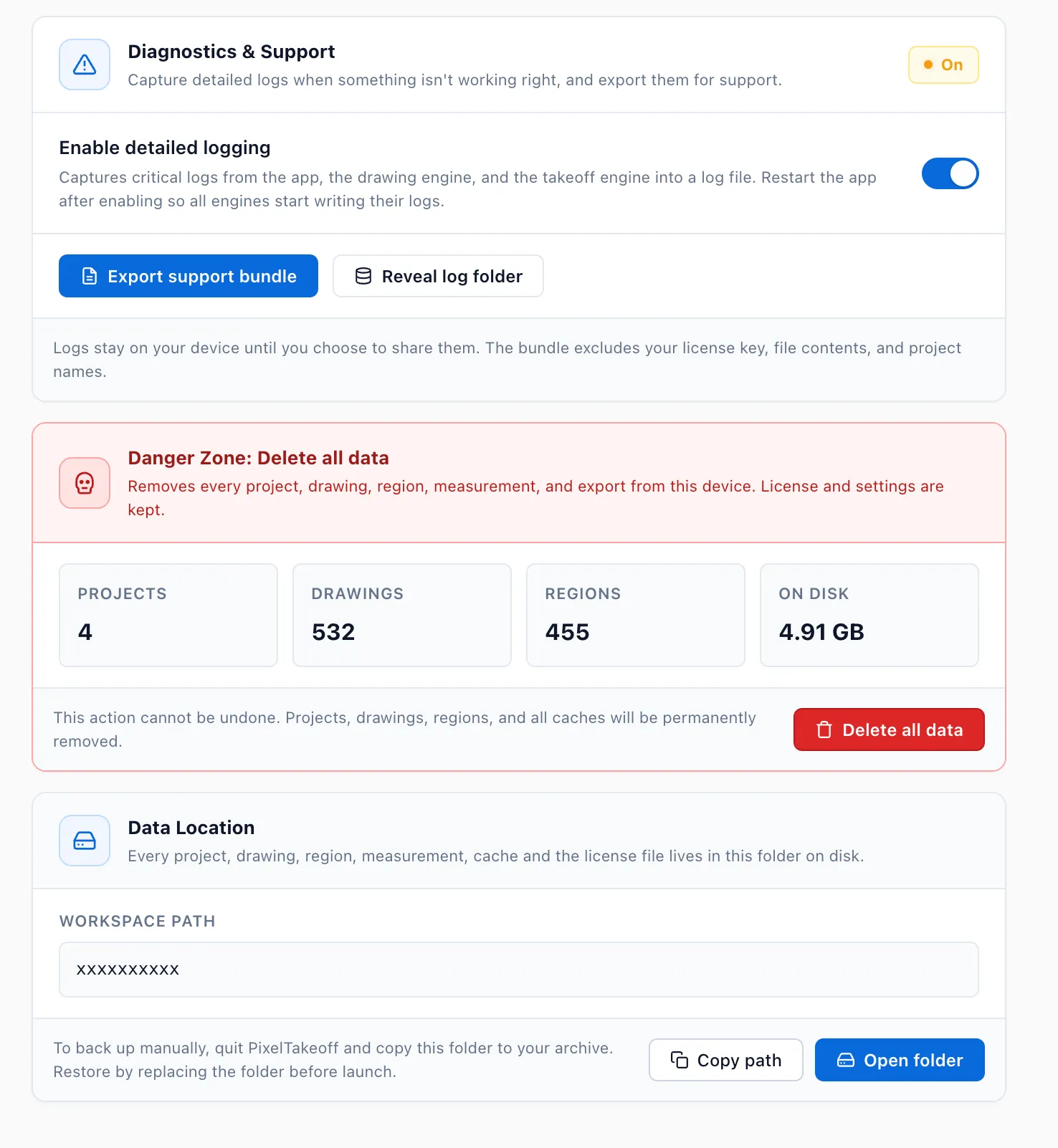
Delete all data removes every project, drawing, region, measurement and export from this device. Your license and your settings are kept.
The card shows what you are about to lose before you touch it: how many projects, how many drawings, how many regions and how much disk space.
Data Location
Section titled “Data Location”Workspace path shows the folder holding every project, drawing, region, measurement, cache and the license file. Copy path puts it on the clipboard and Open folder takes you to it.
This is the folder your backup needs to cover. To back up by hand, quit PixelTakeoff and copy the folder to your archive. To restore, put the folder back before launching.
Projects, drawings and your workspace
License & Activation
Section titled “License & Activation”Everything about your license and which machine it is tied to.
License details shown here include the License Key, License Type, Plan, Status, Expires On, Time Remaining and License ID. Status is colour coded, so an expired or cancelled licence is obvious at a glance.
Device Slots and Seats show how many machines your license covers and how many are in use. Registered Device shows the activated machine, with its Hardware ID and Hostname.
Moving to another computer
Section titled “Moving to another computer”Order matters here: free the seat on the old machine first, then activate the new one.
- On the old machine, open Settings → License & Activation.
- Click
 Deactivate this device. This frees the seat, removes
the license key from the device and clears the local license information.
Deactivate this device. This frees the seat, removes
the license key from the device and clears the local license information. - On the new machine, activate with the same key.
If the old machine is lost, broken or already disposed of, contact support, since you cannot deactivate from a computer you no longer have.
Re-check license
Section titled “Re-check license”Re-check license with server refreshes your license status immediately rather than waiting for the next automatic check. Use it after a renewal or a plan change so the app picks up the new state straight away.
License File Location shows where the license is stored on this machine.
Clear local license data
Section titled “Clear local license data”Clear local license data removes the license key from this device and clears all local license information.
Support
Section titled “Support”Report a problem without leaving the app.
Provide a Contact email so we can reply, Describe the issue, and attach files if they help. Attachments can be removed before sending.
The more specific the description the faster this goes. “Area stopped changing after I erased twice on the paving group” is far more useful than “quantities are wrong”. If the problem is reproducible, turning on Enable detailed logging first and attaching a support bundle usually settles it in one round.
Version and updates
Section titled “Version and updates”Shows the version you are running. Check pixeltakeoff.com for a newer version looks for an update, and Stop reminding me about this version on launch silences the prompt for a version you have decided not to take yet.
Nothing is downloaded or installed automatically. You stay in control of when you update, which matters when a job is mid takeoff.
System
Section titled “System”Operating system, Hostname, and the Electron, Chromium and Node versions the app is built on. Support may ask for these, and they are included in a support bundle anyway.
End User License Agreement, Privacy Policy, Terms of Service and Third-Party Notices.
Common questions
Section titled “Common questions”I changed Color Tolerance but an existing area did not change. Correct. Settings apply to new work, and existing regions keep the settings they were measured with. Erase and refill the area if you want it remeasured.
Which setting do I change if drawings are slow? Lower Quality on the Performance tab, and consider clearing the Performance Cache. Hiding groups you are not working on helps too.
Can I move my license myself? Yes. Settings → License & Activation → Deactivate this device, then activate on the new machine. Support is only needed when the old machine is no longer available.
Does changing Unit System affect my measurements? No. It changes how they are displayed. The underlying measurement is unchanged, so you can switch back and forth safely.