

Counting
Counting covers everything priced per item rather than per area or length: trees, light fittings, bollards, manholes, furniture, sanitary ware.
There are two ways to do it. Place markers yourself with  Count (
C), or
find every instance of a symbol at once with  Auto Count (
A).
A related tool,  Find Pattern (
G), highlights where a
detail or arrangement appears without counting it. If the answer you need is a
number, stay on this page. If it is “show me where”, use Find Pattern.
Manual counting
Section titled “Manual counting”Best when there are few items, or when the symbols vary too much for automatic matching.
- Select Count (
C). - Set the group name and colour, as you would for any takeoff.
- Click each item on the drawing.
Each click places a numbered marker and increases the group total. Markers are numbered as you place them so you can work through a drawing methodically and see where you got to.
Marker size and shape
Section titled “Marker size and shape”Marker size can be adjusted so markers stay readable on a dense sheet without covering the symbol underneath.
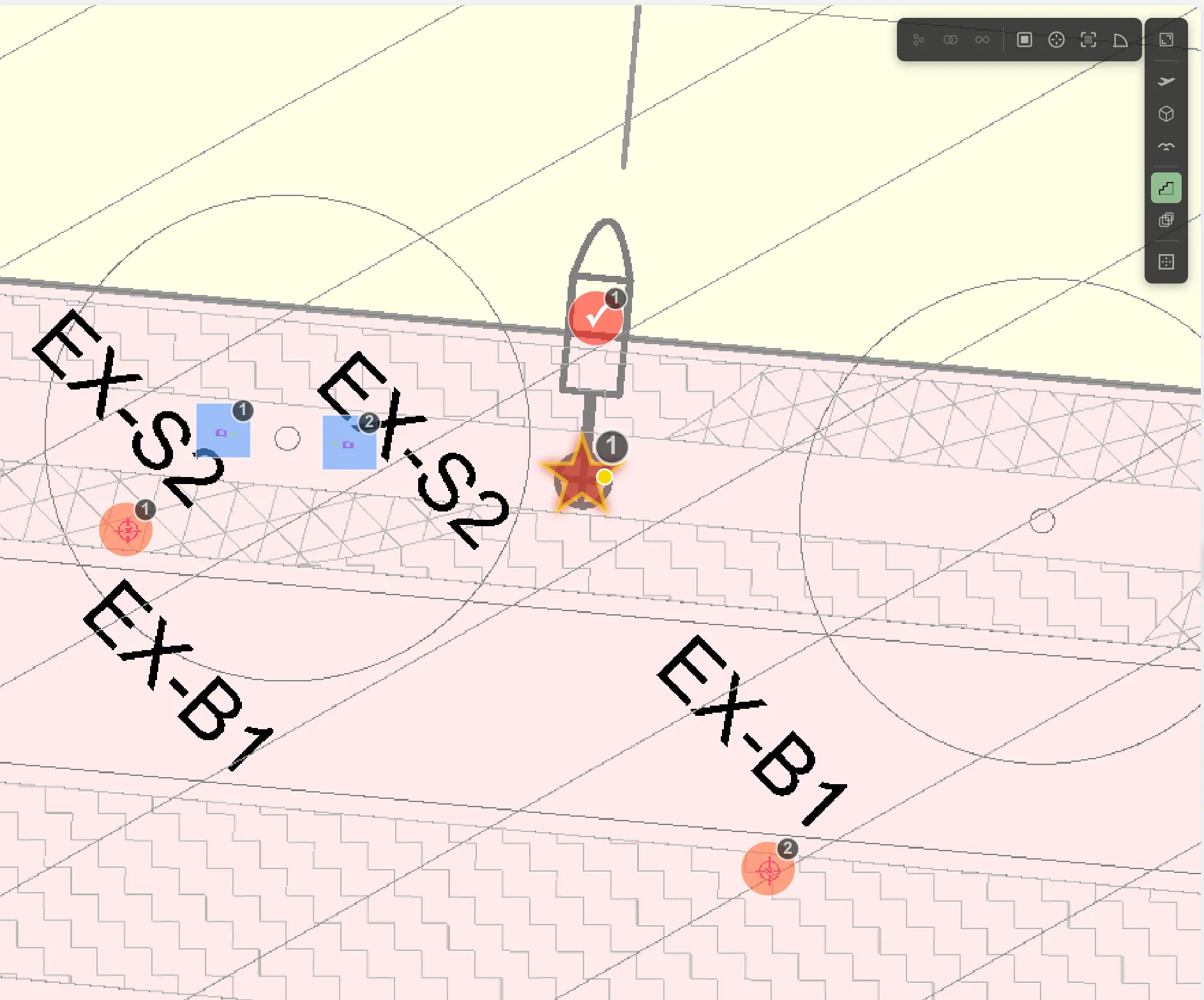
Markers can also take different shapes: circle, box, triangle, diamond, star, plus, cross and tick. Circle is the default.
Shape is worth using deliberately. On a drawing carrying several count groups, giving each a distinct shape as well as a distinct colour keeps them apart when the sheet is printed in black and white, which colour alone cannot do.
Four count groups on one sheet, each with its own shape and colour. Even in black and white you could still tell a tick from a box from a star:
The total counts markers, not numbers
Section titled “The total counts markers, not numbers”Each group numbers its own markers, so two groups on the same sheet will both have a marker 1. The numbers identify a marker within its group, not across the drawing.
If you delete a marker, the total drops by one. Marker numbering may then have a gap in it, which is expected and harmless. The number on a marker is a label to help you navigate, and the total always reflects how many markers exist.
Adding a marker among existing ones
Section titled “Adding a marker among existing ones”A new marker normally takes the next number in the sequence. On a sheet with hundreds of markers that can put related items far apart in the list: spot a missed item back near markers 1 to 10 and the new marker still becomes 145.
The  Nearest numbering toggle on the count group header changes
this:
Nearest numbering toggle on the count group header changes
this:
- In the work in progress panel, find the count group’s header row.
- Click Nearest numbering, just left of Edit Settings. It
turns blue while it is on.
- Click the missed item on the drawing.
The new marker takes the number after its closest neighbour, and every number above it moves up by one. Added next to marker 7, it becomes 8, and the old 8 onwards shift up. The sequence stays unbroken, and markers that sit together on the sheet keep numbers that sit together in the list.
The toggle is per group, so it can be on for the group you are patching up and off everywhere else.
Auto Count
Section titled “Auto Count”Best when a symbol repeats many times. You show PixelTakeoff one example and it finds the rest.
- Select Auto Count (
A). - Choose the mode, then select a clear, complete example of the symbol as the Template.
- Adjust the settings below if the results need it, and Start Search.
- Review the proposed matches, then Accept Count.
The window carries a step indicator across the top, Template, Configure, Search, Results, so you can always see where you are.
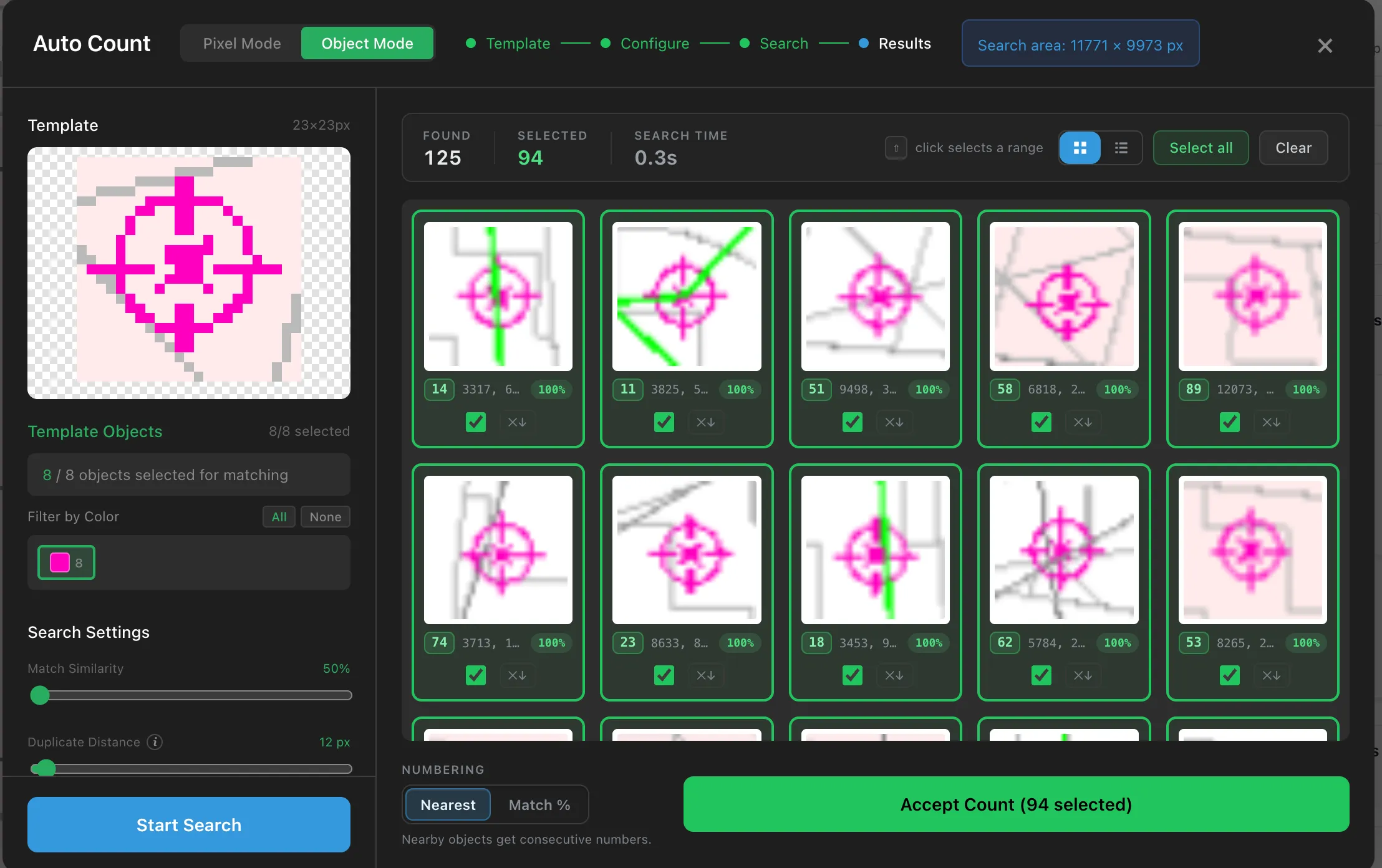
Pixel Mode or Object Mode
Section titled “Pixel Mode or Object Mode”The first choice matters more than any slider:
| Mode | What it matches | Use it when |
|---|---|---|
| Object Mode | The drawing’s own objects | The PDF came from CAD. Matching is exact, so results are cleaner and faster |
| Pixel Mode | Appearance | Any sheet at all, including scans and drawings with nothing underneath to match |
Try Object Mode first on anything that came out of design software. Fall back to Pixel Mode when it finds nothing or clearly misses instances. Pixel Mode matches by colour as well as shape, so it is also the better choice for colour-filled symbols, coloured circles, tags and highlighted fixtures.
Object Mode’s results screen carries a Switch to Pixel Mode shortcut for exactly this: one click keeps your template and search area, then Start Search runs the same search the other way.
Settings
Section titled “Settings”The two modes offer different controls, so what you see depends on the mode you picked.
| Setting | Mode | What it does |
|---|---|---|
| Match Similarity | Object Mode | How closely a candidate must resemble your template. Lower it to catch variants you are missing, raise it to cut false matches. |
| Sensitivity | Pixel Mode | How finely the drawing is examined. Raise it for small or tightly packed symbols. |
| Rotation Detection | Pixel Mode | Whether symbols placed at different angles are matched. Set to No rotation when every symbol sits the same way up, which makes matching stricter and cleaner. |
| Duplicate Distance | Both | How close two matches may be before they are treated as the same item. Raise it if one symbol is being counted twice. |
| Filter by Color | Both | Leaves colours out of the matching, which is effective when the same shape means different things in different colours. |
Choosing a good template
Section titled “Choosing a good template”The template decides everything that follows.
- Pick an instance that is complete and unobstructed, not one overlapped by a leader line or dimension.
- Pick a typical one rather than an unusual variant.
- Include the whole symbol and as little surrounding drawing as possible.
If results are poor, changing the template is usually more effective than adjusting settings.
Reviewing before accepting
Section titled “Reviewing before accepting”Auto Count proposes matches and waits for you. Nothing is added until you accept.
The header counts what happened: Found is everything it turned up, Selected is how many are ticked, and only the ticked ones become markers. Each card shows a thumbnail of the match in place, its position and how strongly it matched, with a tick you can clear.
- Select all and Clear work on the whole set.
- Shift and click selects a range of cards, which is far quicker than clicking through a long tail of weak matches one at a time.
- The two buttons beside them switch between the card grid and a plain list.
Matches sitting very close to an existing marker are flagged as likely duplicates, so you can uncheck them rather than hunting for double counts later.
Accept Count commits, and its label tells you exactly how many you are about to add.
Numbering
Section titled “Numbering”Numbering at the bottom decides what order the new markers are numbered in:
| Option | Order |
|---|---|
| Nearest | Nearby items get consecutive numbers, so 1, 2, 3 sit next to each other on the sheet |
| Match % | Strongest match first |
Nearest is the one to leave on. Numbers that follow the drawing let you check a count by walking the sheet in order, which is exactly what you do when someone queries a quantity.
When the results are wrong
Section titled “When the results are wrong”Two failure directions, and what to do:
- Missing items: lower Match Similarity in Object Mode, or raise Sensitivity in Pixel Mode and enable rotation if symbols sit at angles.
- False matches: raise Match Similarity, or use Filter by Color if the wrong matches are a different colour.
Run it, review, adjust, run again. Two quick passes beat one long fight with the settings.
Counting accurately
Section titled “Counting accurately”Count one item type per group. Trees and bollards in one group gives you a number you cannot price.
Do a manual sweep after an automatic pass. Auto Count is fast but the drawing decides how well it works. A quick visual scan for anything obviously missed is worth the minute.
Watch for items on a boundary if you are using zones. A marker counts in the zone its centre falls in.
Check the count against the drawing’s own schedule where one exists. A planting schedule listing 47 trees against your 43 is telling you something useful.
Common questions
Section titled “Common questions”Can I mix manual and automatic counting in one group? Yes. Run Auto Count, then add anything it missed by hand. They go into the same total.
Can I move a marker? Yes, drag it. The total does not change, since it counts markers rather than positions.
Why is my count higher than expected? The usual cause is one symbol matched twice. Raise Duplicate Distance and re-run, or find the doubled markers on the drawing.
Does marker size affect anything? No. It is display only, so make markers whatever size is readable.