

Markup
 Markup (
M) annotates a drawing: notes, queries, clouds around changes,
callouts pointing at details, highlights over things to come back to.
Markup is never measured. It carries no area, no length and no count, and it does not appear in your quantities. It is there to communicate, whether to a colleague, a client, or yourself next week.
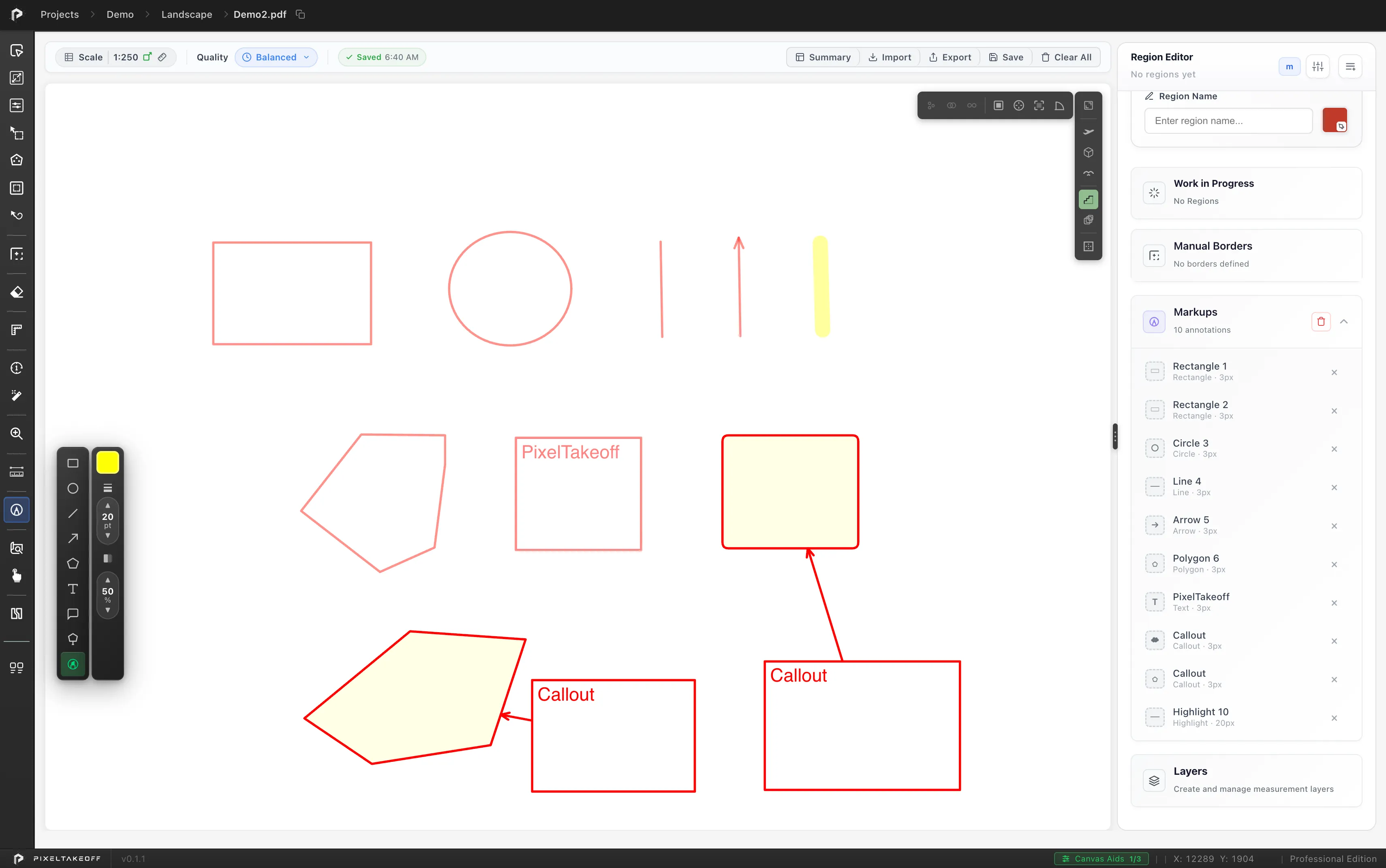
Selecting Markup opens a sub-toolbar with the nine tools, and a second strip beside it holding the properties they all share: colour, line style, size and opacity. Set those before you draw, or select an annotation and change them after.
The markup tools
Section titled “The markup tools”| Tool | Use it for |
|---|---|
| Rectangle | Boxing an area of interest |
| Circle | Ringing a detail |
| Line | A plain straight line |
| Arrow | Pointing at something specific |
| Polygon | An irregular outline around a group of items |
| Text | A note directly on the drawing |
| Callout | A clouded note with a leader, the usual way to flag a change or query |
| Polygon Callout | A callout with a straight sided outline instead of a cloud |
| Highlighter | A translucent pass over something to make it stand out |
Every annotation you add is listed in the Markups section of the right panel, with its name, its kind and its thickness, so you can find one you cannot see and delete it without hunting across the sheet.
Typical uses
Section titled “Typical uses”Queries to the design team. Circle what is unclear and add a callout stating the question. When the drawing comes back revised, your query is still on it in context.
Recording assumptions. Where you have priced something the drawing does not fully define, a text note saying what you assumed is worth having when the question is asked three months later.
Marking revisions. Cloud what changed between revisions so a reviewer can see at a glance what to re-check.
Progress tracking on a big sheet. Highlight areas as you complete them so you can put a large drawing down and pick it up without losing your place.
Markup and takeoff together
Section titled “Markup and takeoff together”Markup sits over your takeoff and does not interfere with it. You can annotate freely without any risk to quantities.
That separation is the point. If you circle an area with the Circle markup tool, nothing is measured. To measure it, use a region tool. If you find yourself wanting a number from something you have marked up, take it off properly with the matching takeoff tool.
Markup on exports
Section titled “Markup on exports”Markup appears on an exported takeoff sheet along with your regions, so a sheet sent to a colleague carries your notes and queries with it.
It never appears in the quantity summary or in a spreadsheet export, because there is no quantity to report.
Common questions
Section titled “Common questions”Does markup affect my quantities? No, never. It is annotation only.
Can I hide markup? Yes, so you can produce a clean quantities sheet and a marked up one from the same takeoff.
Can I edit a note after placing it? Yes, text and shapes can be adjusted, moved and deleted after placing.
Should I use markup or a manual border to close a gap? A manual border, and
they are different things. Markup is drawn over the top and changes nothing,
while a  Manual Border (
B) constrains where a fill can go.