

Region Settings
Region Settings control how the region tools behave: how closely colours must match, how large a single region may grow, how solid your takeoff looks, and which unit system is active.
They live in two places, and understanding the pair is the whole trick of this page.
Global defaults, and per-drawing values
Section titled “Global defaults, and per-drawing values”| Where | What it sets |
|---|---|
| Settings → Region Settings | The global defaults. Every new drawing starts with these values. |
 in the editor in the editor | This drawing’s values. Changing them here overrides the global defaults for the drawing you are working on, and only for it. |
In practice:
- Set the global defaults once, the way you usually work.
- Adjust per drawing when a sheet needs something different, for example a higher Color Tolerance on a heavily hatched drawing.
- A per-drawing change never touches your global defaults, and never touches any other drawing.
The settings
Section titled “The settings”In the editor, the sliders button at the top of the right
panel opens the dialog:
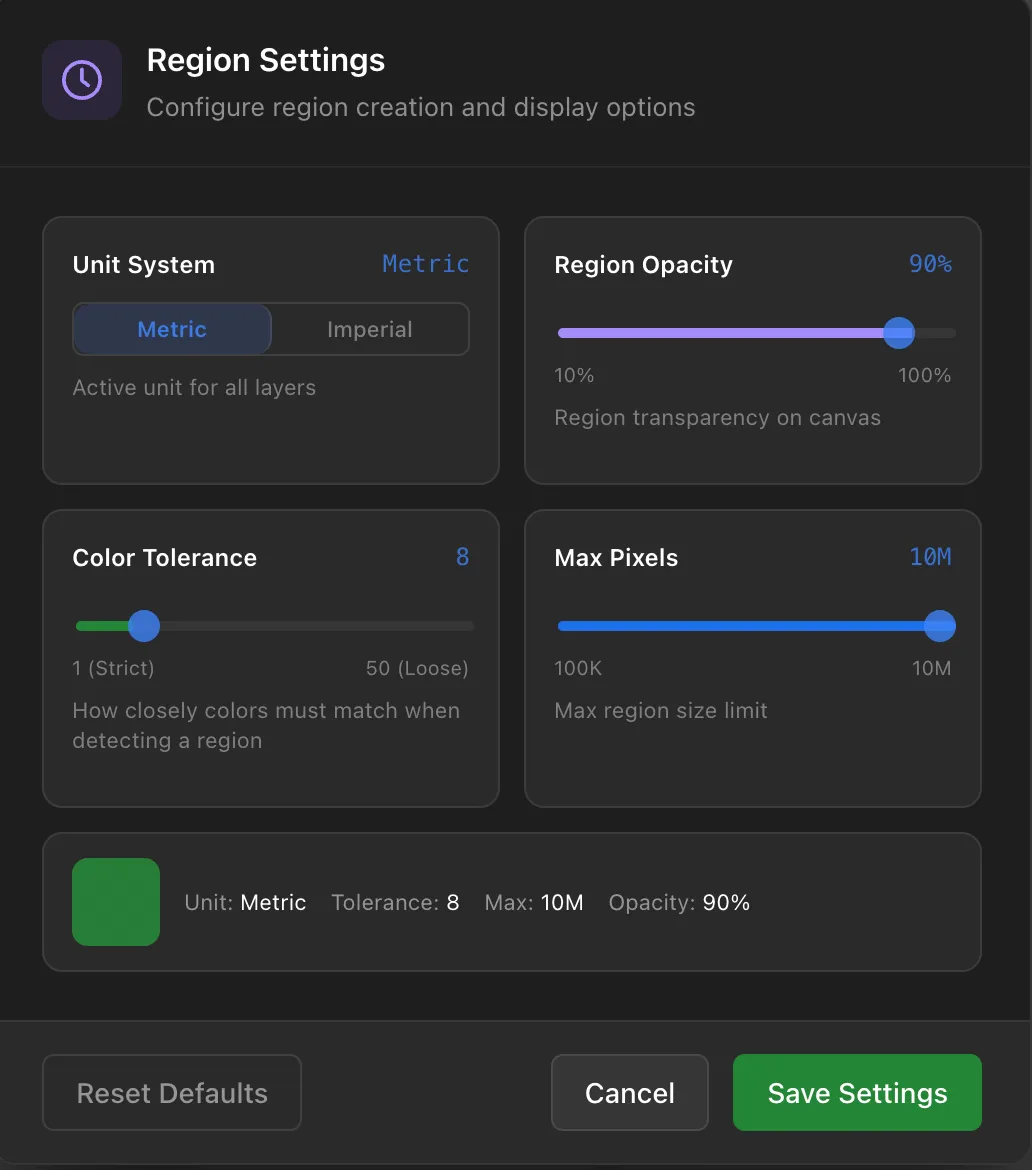
| Setting | What it does | Default |
|---|---|---|
| Unit System | Metric or Imperial, the active unit for all layers. Governs how quantities are displayed, never what was measured, so it is always safe to switch. | Metric |
| Region Opacity | How solid your takeoff looks over the drawing, from 10% to 100%. Lower it to read the drawing underneath. Display only, it never changes a quantity. | 90% |
| Color Tolerance | How closely colours must match for the tool to treat two parts of the drawing as the same area. Range 1 (Strict) to 50 (Loose). Lower it when a fill grabs too much, raise it when a fill stops short. | 8 |
| Max Pixels | An upper size limit on a single region, from 100K to 10M, which stops a runaway fill from consuming a whole sheet. | 10M |
The strip along the bottom of the dialog summarises the current values at a glance. Changes apply when you click Save Settings, and Reset Defaults returns everything to the values above.
They apply to new work
Section titled “They apply to new work”Color Tolerance and Max Pixels affect fills you make from that point onward, not fills you have already made. Existing regions keep the settings they were taken off with, so adjusting tolerance never retrospectively alters an area you have already measured.
If you want an existing area remeasured under a new tolerance, erase it and fill it again.
Tuning Color Tolerance
Section titled “Tuning Color Tolerance”This is the setting you will actually touch, and the working rule is simple:
- Fill escaped into areas you did not want: lower the tolerance.
- Fill stopped short of where it should have reached: raise it.
Work in small steps, since moving from 8 to 40 in one go usually replaces one problem with the other. A hatched or textured area often needs a higher tolerance than a flat filled one, because the hatch introduces colour variation the tool would otherwise treat as a boundary.
If a fill floods the whole sheet, the cause is usually a gap in the boundary rather than tolerance, and the fix is a manual border.
Common questions
Section titled “Common questions”I changed Color Tolerance but an existing area did not change. Correct. Settings apply to new work, and existing regions keep the settings they were measured with. Erase and refill the area if you want it remeasured.
Do my editor changes affect other drawings? No. Changes made from the editor apply to the drawing you are working on. The global defaults in Settings → Region Settings are what new drawings start from.
Does changing Unit System affect my measurements? No. It changes how they are displayed. The underlying measurement is unchanged, so you can switch back and forth safely.
Is Region Opacity ever part of a quantity? No, it is purely how the takeoff is drawn on screen.