

AI Agent (Beta)
The AI Agent tab in Settings lets an AI agent you already use, Claude Code, Claude Desktop or Codex, operate PixelTakeoff’s takeoff tools on the drawing you have open. You ask in plain words, for example “take off the paving on this sheet and check each fill for spills”, and the agent fills, traces and counts with the same engine you click with. Its work lands in Work in Progress for you to accept, fix or delete.
The agent never measures anything itself. Every area, length and count it reports comes from the engine, exactly as it would from your own click. The agent chooses where to click and looks at the result; the engine does the measuring.
What you need
Section titled “What you need”- An active PixelTakeoff license. The agent endpoint refuses connections without one.
- PixelTakeoff open, with the drawing you want measured open in the editor. The agent can also open a project and a drawing by name if you ask it to.
- One of the supported clients on the same machine: Claude Code, Claude Desktop, or Codex. Claude Desktop also needs Node.js installed.
The endpoint listens only on this computer (127.0.0.1). Nothing on your
network can reach it, and it stops when PixelTakeoff closes.
Turn the endpoint on
Section titled “Turn the endpoint on”- Open Settings and select the AI Agent tab.
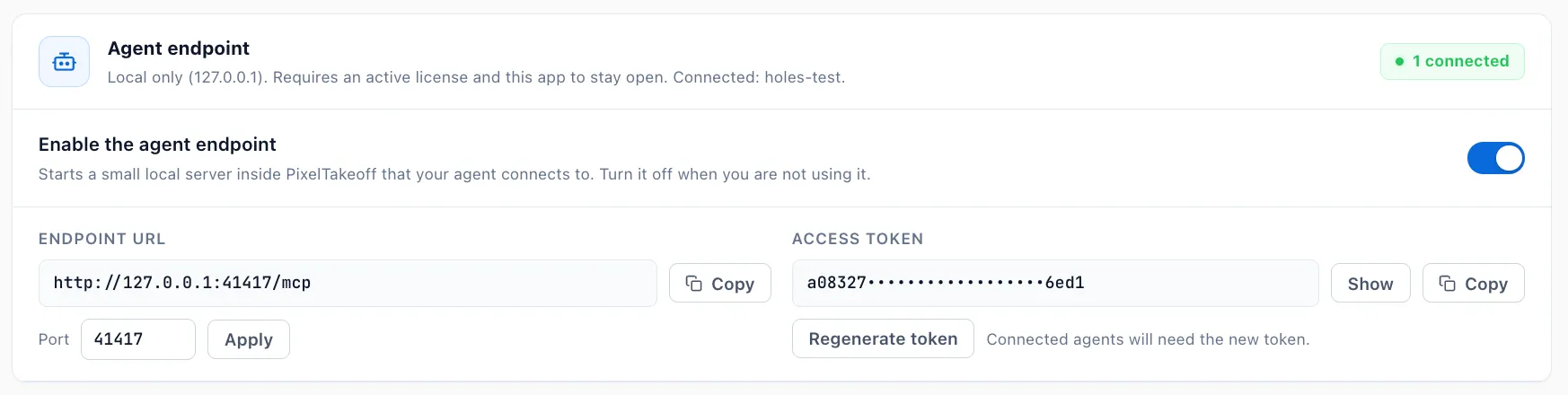
- In Agent endpoint, switch the endpoint on. The address and an access token appear.
- Keep the token to yourself. It is the only thing that lets a client talk to the app. Regenerate it at any time; connected clients then need the new value.
- If port
41417is taken on your machine, change the port here and use the new address in the client snippet.
Connect your client
Section titled “Connect your client”Connect your agent shows a ready-made snippet for each client with your address and token filled in. Copy it from the app rather than from this page, so the token is right.
Claude Code
Section titled “Claude Code”Run once in a terminal:
claude mcp add --transport http pixeltakeoff http://127.0.0.1:41417/mcp --header "Authorization: Bearer <your token>"Claude Desktop
Section titled “Claude Desktop”Add to claude_desktop_config.json (Settings, Developer, Edit Config), then
restart Claude Desktop:
{ "mcpServers": { "pixeltakeoff": { "command": "npx", "args": ["-y", "mcp-remote", "http://127.0.0.1:41417/mcp", "--header", "Authorization: Bearer <your token>"] } }}Add to ~/.codex/config.toml:
[mcp_servers.pixeltakeoff]url = "http://127.0.0.1:41417/mcp"http_headers = { Authorization = "Bearer <your token>" }When a client is connected, the Agent endpoint card lists it by name.
Give the agent its playbook
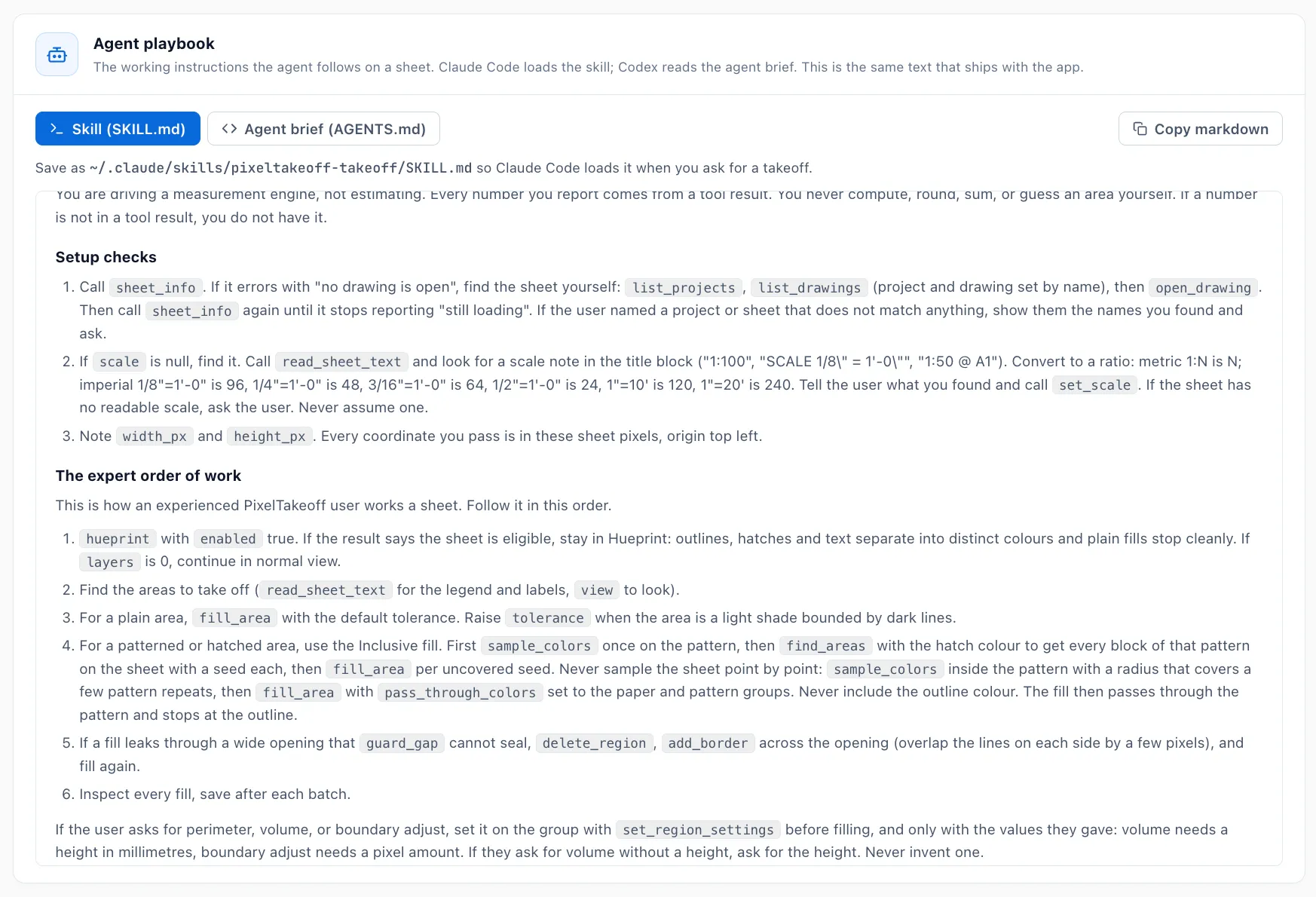
Section titled “Give the agent its playbook”The agent works far better with PixelTakeoff’s playbook: the order an experienced user works a sheet, how to fill patterns, how to trace lines, how to count, and the rule that it reports only numbers the engine returned. The Agent playbook card at the bottom of the AI Agent tab shows the text and has a Copy markdown button.
- Claude Code: save the Skill text as
~/.claude/skills/pixeltakeoff-takeoff/SKILL.md. Claude Code loads it when you ask for a takeoff. - Codex: save the Agent brief text as
AGENTS.mdin the folder you run Codex from, next to its MCP config. - Claude Desktop: paste the Skill text into the project instructions, or at the start of the conversation.
Ask for a takeoff
Section titled “Ask for a takeoff”Open the sheet you want measured, then ask the agent. A few prompts that work well:
- “Take off the paved areas on this sheet and check each fill for spills.”
- “Use Hueprint if this sheet is eligible, then take off the planting beds as one group called Planting.”
- “Count the light poles on this sheet.”
- “Trace the kerb lines. Line width is 150 mm.”
What happens next:
- The agent reads the sheet, sets the scale if the sheet states one, and asks you if it does not. It never assumes a scale.
- It fills, traces or counts with the engine, looks at an overlay of each result, and fixes spills with the same tools you would use.
- Its regions, lines and markers appear in Work in Progress, marked as agent proposed. Accept the ones that are right, fix or delete the rest, exactly as with your own work.
- It saves as it goes and reports the quantities the engine returned, with the ids of the regions so you can find each one.
Give it the values only you know, such as a line width, a depth for volume, or a boundary adjust amount. The agent is told never to invent these.
What the agent can do
Section titled “What the agent can do”| Area | Tools |
|---|---|
| Navigate | Open a project, a drawing set or a drawing by name; say what is open |
| Read the sheet | Sheet size and scale, the sheet’s text, image crops of any box, colour groups at a point, every patch of a colour |
| Set up | Set the scale, Hueprint on or off, borders, region settings, line settings, the canvas fill controls |
| Switch view | TakeOff, Hawk, Crisp, 3D, or back to the plain drawing |
| Measure | Fill areas including Inclusive fills with pass-through colours, Dashed Trace and Auto Line, count markers |
| Annotate | Rectangle, circle, arrow, line, polygon, highlighter, text, and cloud or polygon callouts |
| Correct | Seal gaps, fill holes, extract holes, boundary adjust, erase, delete, undo, save |
Two of these are worth knowing about. Hawk View paints every finished region, line and marker opaque white over the drawing, so whatever still shows through is what has not been measured yet: it is the quickest way for the agent to see what is left, rather than working it out from its own notes. The canvas fill controls (Solid Fill, Seal Gaps, Bounding Box Fill, Door-aware Fill) change every fill the agent makes afterwards, exactly as they do when you set them yourself, and do nothing to regions that already exist.
Markup is annotation, not measurement. A markup changes no quantity, so the usual flow is to show the agent a screenshot of the part of the sheet you mean and ask it to circle, point at or note something there.
Saved regions are read-only to the agent. It can only change, erase or delete work-in-progress regions, lines and markers, so anything you have saved is safe from it. The full list with a one-line description of each tool is in the Available tools card of the AI Agent tab.
Privacy
Section titled “Privacy”PixelTakeoff itself sends nothing anywhere. The endpoint is local, the token never leaves your machine, and the app does not talk to the AI provider.
The client you connect does. To see the sheet, the agent asks the app for image crops, and the client sends those crops, along with the sheet’s text and the numbers it reads back, to the model provider for that client under that provider’s terms. If a drawing must not leave your machine, do not connect an agent to it. Switch the endpoint off when you are not using it.
When something does not work
Section titled “When something does not work”| You see | What it means |
|---|---|
| The client cannot connect | The endpoint is off, the token in the client is old, or the port changed. Copy the snippet again from the app. |
| “No drawing is open” | Open a drawing in the editor, or ask the agent to open one by name. |
| “Still loading” | The drawing is still rendering. The agent waits and tries again. |
| “No scale set” | The sheet has no readable scale note. Tell the agent the scale. |
| “Saved regions cannot be changed by the agent” | It tried to edit a saved region. Move it back to Work in Progress if you want the agent to work on it. |
| The endpoint refuses to start | The license is not active, or the port is in use on this machine. |